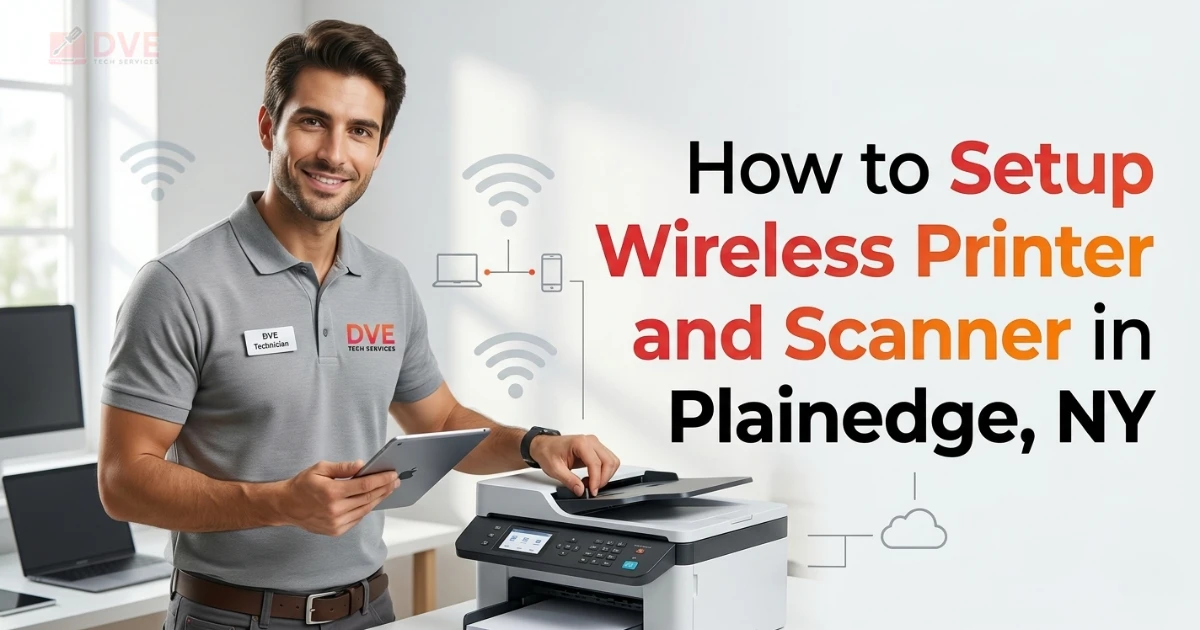
How to Setup Wireless Printer and Scanner in Plainedge, NY
Written by Khuram Aakash | IT Expert and Founder, DVE Tech Services | Certified Long Island Tech Specialist
How to setup wireless printer and scanner at home in Plainedge, NY is one of the top tech questions we get in 2026.
Your printer may have dropped off the network after a new router. Your scanner may have stopped working after a Windows update. Or your scan-to-email may have failed when Gmail changed its rules.
This guide covers all of it. The steps come from real service calls in Nassau County. You will learn what to try at home and when to call a pro. For a full list of all that we cover, visit our complete printer service and repair guide.
1. What Is Wireless Printer and Scanner Setup?
How to setup wireless printer and scanner means linking your device to your home WiFi. It also means adding the right drivers and software. Then you set it up to work on all your computers, phones, and tablets. In 2026, this also means scan-to-email, cloud print, and mobile apps.
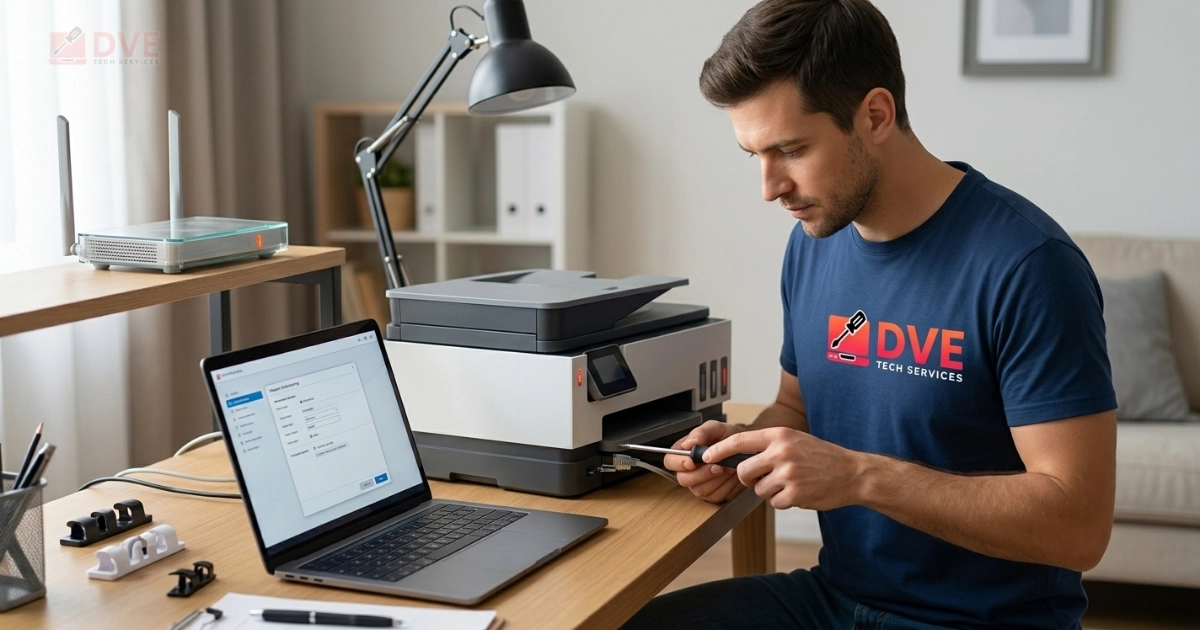
2. Why Printer Setup Fails in 2026
Printers can do more in 2026, but learning how to setup wireless printer connections has not gotten easier. A device that uses WiFi, Bluetooth, and USB at the same time needs firmware that stays in sync with your router and OS.
How to setup wireless printer connections after a router change or OS update is something our Plainedge techs fix every week. A wireless printing setup that worked in January can break after a router update in March. The result is the same each time: the printer shows offline, print jobs pile up, or the scanner is gone from the computer.
3. Common Causes of Printer and Scanner Failures
3.1 Outdated or Broken Printer Drivers
A printer driver is the link between your OS and your printer. If you are trying to learn how to setup wireless printer connections and nothing works, a broken driver is often the cause.
Without the right driver, your computer cannot send print jobs. Driver damage can happen with no warning. A Windows update or a failed install can leave broken files. The printer looks online, but nothing prints.
3.2 WiFi Network Changes
One of the most asked questions about how to setup wireless printer connections is what to do after a new router. Your printer saves its WiFi name (SSID) and password in its own memory.
When you get a new router or reset your modem, that saved data is no longer valid. The printer turns on fine but cannot find the network. This is the top cause of printer calls we get from Plainedge and Levittown homes.
Many families near Bethpage State Park have upgraded to tri-band mesh routers in 2025 and 2026. These need an extra step to make sure the printer and computers are all on the same network.
3.3 Wrong Network or IP Address Setup
For a stable printer network setup, your printer must stay at the same IP address. Most routers give out changing IP addresses by default. When the printer gets a new IP, all saved links on your computers and phones stop working.
For home offices in Plainedge and Levittown with more than one computer, knowing how to setup wireless printer connections with a fixed IP is the best long-term fix. We also cover dedicated lan printer setup steps in our scanner setup guide for Konica Minolta in Plainedge.
3.4 Scan-to-Email Auth Problems
When learning how to setup wireless printer scan-to-email in 2026, email auth is the biggest issue. Gmail and Yahoo now need App Passwords for third-party SMTP links.
Microsoft Outlook has been moving to Modern Auth (OAuth). Whether an App Password works depends on whether Basic Auth is still on for that account. If your scan-to-email stopped a year ago, an auth change is almost always the reason.
3.5 Device-Specific Gaps
Chromebook printer setup fails often because ChromeOS uses IPP, not standard drivers. Android printer setup needs the right Mopria or brand plugin. iPad printer setup and iPhone printing both need AirPrint. AirPrint needs current printer firmware to work on your local network.
4. Step-by-Step Fixes You Can Try
These steps come from our techs’ most common service calls in Plainedge and Long Island in 2026. Try them in order. Most printer issues clear up in the first three steps.
4.1 How to Setup Wireless Printer: Steps for All Brands
Knowing how to setup wireless printer connections step by step is key to getting your device online fast. This works for HP, Canon, Epson, Brother, and most other brands.
-
Restart all devices in the right order. Turn off the computer first, then the printer, then the router. Wait 60 seconds. Turn them back on in reverse: router first, then wait 90 seconds, then printer, then computer. This clears old network data.
-
Check the printer’s WiFi light. A blinking light means no link. A solid light means it is on. No light means WiFi is off. Turn it on from the printer’s Settings menu.
-
Run the Wireless Setup Wizard on the printer. This is the key step in how to setup wireless printer connections. On the printer’s screen, go to Settings, then Network, then Wireless Setup Wizard. Pick your WiFi name, type your password, and finish the wizard.
-
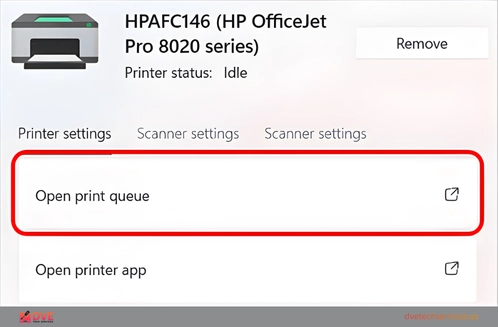
Add the printer on your computer. Windows: Settings, then Bluetooth and Devices, then Printers and Scanners, then Add a Printer. It should show up in 30 seconds. Mac: System Settings, then Printers and Scanners, then Add Printer.
-
If it does not show up, get the full driver pack. Go to the maker’s website (hp.com, epson.com, brother.com, canon.com). Download the full software package, not the basic one, for your model and OS. Run the install and follow all steps.
-
Print and scan a test page from every device. Test from your computer first, then your phone. On iPhone or iPad, tap Share, then Print. On Android, use the Mopria app.
4.2 How to Setup Wireless Printer Driver: Clean Reinstall
If you know how to setup wireless printer connections but it still won’t print, a clean driver reinstall is the fix. This solves most cases where the printer shows on the network but prints blank pages or freezes jobs.
-
Remove the printer from Windows. Control Panel, then Devices and Printers. Right-click the printer and pick Remove Device.
-
Remove all maker software. Settings, then Apps. Remove HP Smart, Canon IJ Scan Utility, Epson Connect, Brother iPrint, and any other brand app.
-
Delete the driver from Device Manager. Device Manager, then Printers or Other Devices, then right-click the printer, then Uninstall Device, then check Delete the driver software.
-
Restart your computer fully.
-
Get fresh drivers. Go to the maker’s website. Download the full driver pack for your model and OS. Run it and follow all steps.
5. Setup by Device: iPhone, iPad, Android, Mac, Chromebook
How to setup wireless printer connections depends on the device you print from. Each type handles how to setup wireless printer in its own way in 2026. Here is what to know for each one.
5.1 iPhone: How to Setup Printer on iPhone
To learn how to setup wireless printer connections on iPhone, no driver or app is needed. Open any file in Photos, Mail, or Safari. Tap Share, then Print, then Select Printer. Your AirPrint printer shows up on its own as long as both your iPhone and printer are on the same WiFi.
For how to setup printer on iphone step by step: go to Settings, then WiFi. Check that you are on the same network as the printer. Open any file and tap Share, then Print. If the printer does not show, update the printer firmware from the maker’s website.
5.2 iPad: iPad Printer Setup
iPad printer setup works the same as iPhone via AirPrint. To do how to setup printer on ipad: open any file, tap the share icon, choose Print, pick your printer. Both the iPad and printer must be on the same WiFi. If the printer does not show, check that the firmware is up to date.
5.3 Android: Android Printer Setup
For how to setup wireless printer connections on Android, you need a print plugin. Go to Settings, then Connected Devices, then Connection Preferences, then Printing. Get the Mopria Print Service or your brand’s plugin from the Play Store. Once it is on your phone, open a file and tap Print.
5.4 Mac: Setup Printer on Mac
How to setup wireless printer on Mac: go to System Settings, then Printers and Scanners, then Add Printer, Scanner, or Fax. Pick your printer from the list. If it is not there, get the Mac driver from the maker’s website and install it. Then try adding again.
5.5 Chromebook: Chromebook Printer Setup
Chromebook printer setup uses IPP, not standard drivers. Go to Settings, then Advanced, then Printing, then Printers, then Add Printer. Most printers made after 2019 are found on their own. For older ones, type in the printer’s IP address. Some old models may need Chrome Enterprise printer configuration or a print add-on. DVE Tech helps Plainedge school families with Chromebook setups every year.
6. Setup by Brand: Brother, Epson, HP
Knowing how to setup wireless printer connections varies by brand. Each maker uses its own WiFi setup screen and driver system. Here is what to know for the top three brands in Plainedge and Long Island homes in 2026.
6.1 Brother Printer Wireless Setup
For brother printer wireless setup, knowing how to setup wireless printer connections on Brother starts with the printer’s screen. Go to Network, then WLAN, then Setup Wizard. Pick your network and type your WiFi password. For models with a keypad but no screen, use WPS: press WPS on the router first, then press WPS on the printer within two minutes.
For how to setup wifi on brother printer on older models, DVE Tech offers a dedicated Brother printer setup service in the North Wantagh and Levittown areas if you want hands-on help from a local tech.
6.2 Epson Printer WiFi Setup
For epson printer wifi setup: press the Home button on the printer, go to Settings, then Network Settings, then Wi-Fi Setup, then Wi-Fi Setup Wizard. Follow the steps to link to your network. The Epson Smart Panel app can also walk you through this from your phone.
For epson wireless printer setup, sign up through Epson Connect to get scan-to-cloud and remote print features. If your Epson scanner stopped working after a software update, a clean reinstall of Epson Scan 2 is the best fix.
6.3 HP Printer WiFi Setup
For how to setup wifi on hp printer: tap the WiFi icon on the control panel and pick Wireless Setup Wizard. You can also use HP’s Smart app on your iPhone or Android. It can do the full WiFi link in about three minutes. The HP Smart app also walks you through SMTP setup for scan-to-email.
6.4 How to Setup Scan to Email (HP, Epson, Brother, Canon, 2026)
This is the most asked-for scanner config we handle in 2026. Here is the full process for how to setup scan to email on hp printer. The steps are the same for Epson, Brother, and Canon.
-
Find your printer’s IP address. On the screen, go to Settings, then Network, then Wireless. Write down the IP address shown.
-
Open a browser on your computer. Type the printer’s IP address in the bar. This opens the printer’s built-in web page called the Embedded Web Server (EWS).
-
Go to Scan, then Scan to Email, then Outgoing Email Profiles.
-
For Gmail in 2026: SMTP server is smtp.gmail.com, Port is 587, TLS is on. You must use an App Password, not your main Google password. Make one at Google’s App Passwords page under Security, then 2-Step Verification.
-
Save the profile and send a test scan to check it works.
7. Long Island Printer Troubleshooting Checklist (2026)
Use this checklist before you call for help. Go through each item in order.
8. When to Call a Pro
Most people learning how to setup wireless printer connections can do it at home using the steps above. But some cases need a trained tech. Trying to fix these on your own can make things worse.
A trained tech can find the root cause in minutes. For hard setups like printer network setup across many devices, or scan-to-email issues caused by email security changes, pro help is faster and safer. If your computer is also having issues, our affordable computer repair service in Plainedge and Levittown can fix both at the same visit.
9. How DVE Tech Services Helps
DVE Tech Services handles how to setup wireless printer and scanner connections for homes in Plainedge, Levittown, and all of Long Island.
Our company was founded by Khuram Aakash. He is a Senior IT Support Engineer and Project Manager at Purolator International. Our team brings top-level IT skills to homes and small firms across Nassau County.
Why Plainedge and Long Island Residents Choose DVE Tech
-
In-home visits only: no drop-offs, no shipping, no wait rooms
-
All big brands: HP, Canon, Epson, Brother, Zebra, Ricoh, Konica Minolta
-
We fix issues that other techs and brand support lines could not solve
-
We tell you what was wrong and how we fixed it, in plain words
-
Nassau County based: we are local, fast, and care about this community
-
Same-day service in most Plainedge, Levittown, and Nassau County areas
For help checking local tech providers, the Nassau County Office of Consumer Affairs has good tools for local business checks.
10. Areas We Serve on Long Island
DVE Tech Services is based at 98 Wolcott Rd, Levittown, NY 11756. We do in-home printer and scanner setup, computer repair, WiFi setup, and more across Nassau County and Long Island.
Find Us on the Map
We come to you. In-home visits are open in all our service areas. You do not need to visit our office.
11. Common Questions
These are the questions we hear most from Plainedge and Long Island customers about printer and scanner setup in 2026.
Q: How to Setup Wireless Printer When It Won’t Show on My Computer?
To learn how to setup wireless printer connections when the device won’t show, start with a full restart. Router first, then printer (wait 60 seconds), then your computer.
Run the wireless setup wizard on the printer to link back to your WiFi. If it still won’t show, do a clean driver reinstall. Remove old drivers from Device Manager, get the full driver pack from the maker’s website, and install from scratch. If you’re still stuck, DVE Tech fixes this in one home visit.
Q: How to Setup Wireless Printer After Getting a New Router?
Knowing how to setup wireless printer connections after a router change is key. Your printer saved your old WiFi name and password.
On the printer’s panel, go to Network Settings, then Wireless Setup Wizard. Pick your new network and type the new password. Your computer may also need to remove and re-add the printer once it is back online.
Q: How to Setup Wireless Printer to Print from More Than One Device?
For how to setup wireless printer connections across many devices, check that all devices are on the same WiFi network as the printer.
Then add the printer on each device one at a time. Windows uses Settings, then Printers and Scanners. Mac uses System Settings, then Printers and Scanners. iPhone and iPad use AirPrint on their own. Android needs the Mopria plugin. For homes with many computers, a lan printer setup with a fixed IP is more stable long-term.
Q: How to Setup Wireless Printer Scan-to-Email on HP (and Other Brands)?
Open the printer’s built-in web page by typing its IP address in a browser. Go to Scan, then Scan to Email. Enter your SMTP data.
For Gmail in 2026, use smtp.gmail.com on port 587 with TLS on. Use an App Password from your Google account, not your main password. The steps are the same for Epson, Brother, and Canon all-in-one scanners.
Q: How to Setup Wireless Printer on a Chromebook When Setup Keeps Failing?
How to setup wireless printer on Chromebook uses the IPP method, not standard drivers. Your printer must support IPP over USB or WiFi.
If it is an older model from before 2019, it may not work natively. Try adding it by hand through Settings, then Advanced, then Printing, then Add Printer. Type in the printer’s IP address. If it still fails, DVE Tech Services can check it in person.
Q: How to Setup Wireless Printer on iPhone or iPad?
How to setup wireless printer on iPhone or iPad is simple. iPhones and iPads use AirPrint. No app or driver is needed.
Make sure both your phone and printer are on the same WiFi network. Open any file or photo, tap the Share icon, then tap Print. Your AirPrint printer will show on its own. If it does not, update the printer firmware and check that both are on the same WiFi band.
Q: What Is the Difference Between How to Setup Wireless Printer (WiFi) and LAN Printer Setup?
A wifi printer setup links your printer to your home WiFi so any device on it can print. A lan printer setup goes one step further. It locks the printer to one IP on your local network.
This makes the link more stable in homes with many computers. LAN setup is best for home offices.
Q: How to Setup Wireless Printer as Default in Windows and Mac?
After you learn how to setup wireless printer connections, set it as default. On Windows: go to Settings, then Bluetooth and Devices, then Printers and Scanners. Click your printer and pick Set as Default.
Turn off the setting that says Let Windows manage my default printer if it keeps switching back. On Mac: go to System Settings, then Printers and Scanners. Open the Default Printer list and pick your device.
12. Other Tech Services from DVE Tech Services
We offer much more than how to setup wireless printer and scanner connections. DVE Tech Services provides a full range of in-home tech support across Long Island. See all that we do at dvetechservices.us.
All services are done at your home in Plainedge, Levittown, and across Long Island. One call gets you a local tech. For a full list of what we can fix, see our computer repair services guide.
13. Book Your Visit Today
Stop losing time to a printer or scanner that won’t work. Whether you need help with how to setup wireless printer connections or fix scan-to-email, DVE Tech Services comes to your home in Plainedge, Levittown, or anywhere on Long Island. In most cases we fix it in one visit.
Need help with how to setup wireless printer connections in Plainedge? Want scan-to-email fixed after your email provider changed its rules? Need a full printer network setup for a home office? Or just want a trained tech to handle a hard wireless printing setup for you?
DVE Tech Services is ready to help. Learn more about our seamless IT solutions for home and business. Or call today to book your visit.